


Ever since I started posting my Obsidian setup online, I have had a barrage of questions about my setup. What theme is this? What font is this? What plugins do you use?
This is going to be a walkthrough of all my set up. By the end of this article, you will have a vault that looks identical to my own.
How Obsidian looks is a big reason I use it and have been using it for six plus years now. It’s simplicity is beautiful. We are very fortunate we have a piece of software and a tool that is flexible enough that we can customise it to be exactly how we want.
My vault is the fruit of six years of tweaking and getting it just right. I hope you enjoy.
Theming
The theme I use, and always have used, is “Minimal” by Kepano.
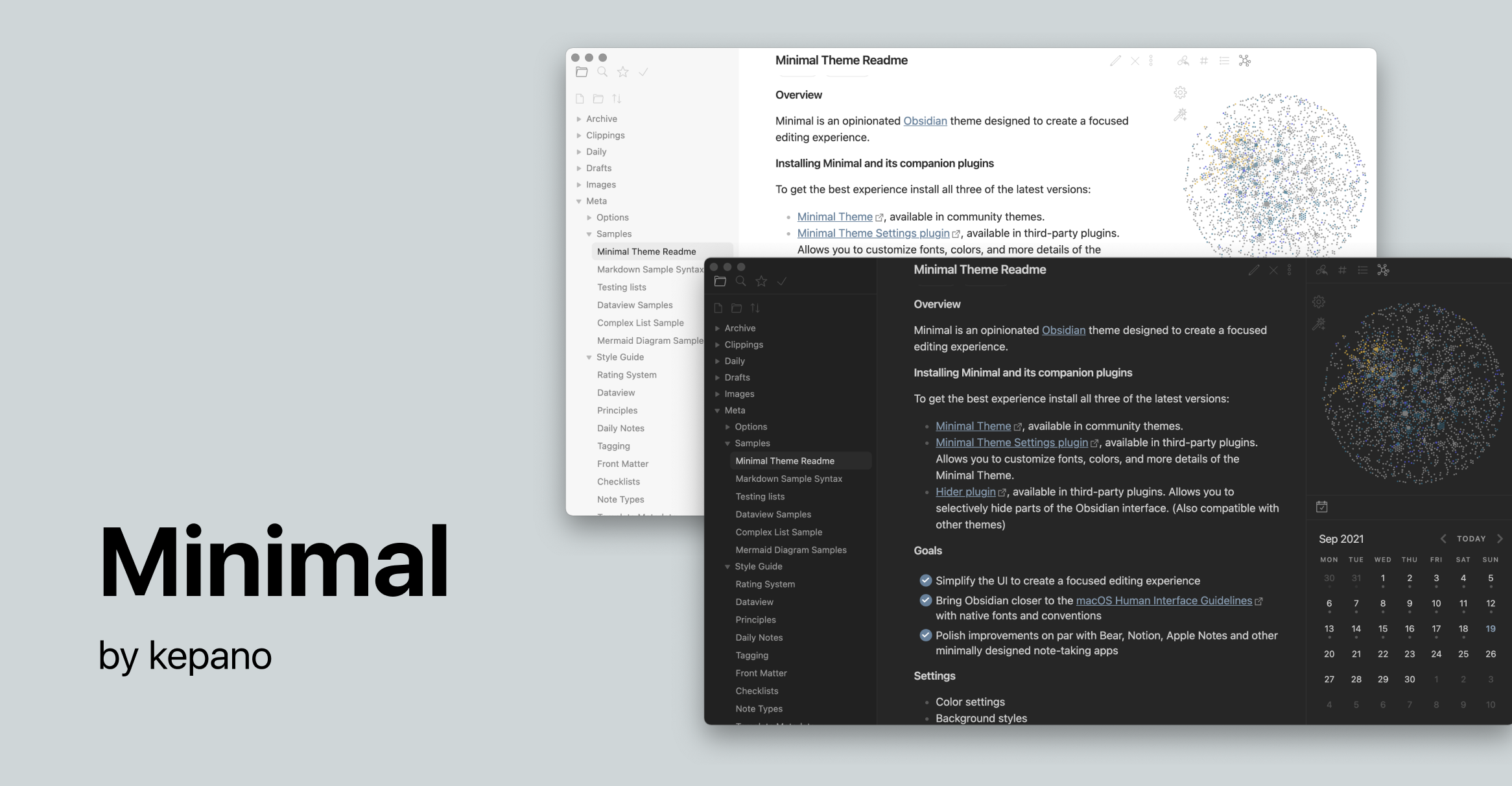
There are some plugins I will discuss later down the line that change the look and feel of the theme even more. However I love how clean and, well, “minimal”, it is by default.
Fonts
I use two main fonts in my vault.
iA Writer Quattro is the main font and this is one I get asked about a lot. Back in the day i used to use the writing app iA Writer - and the font and clean UI was one of my favourite things about the app. This feeling was something I wanted to replicate in Obsidian.
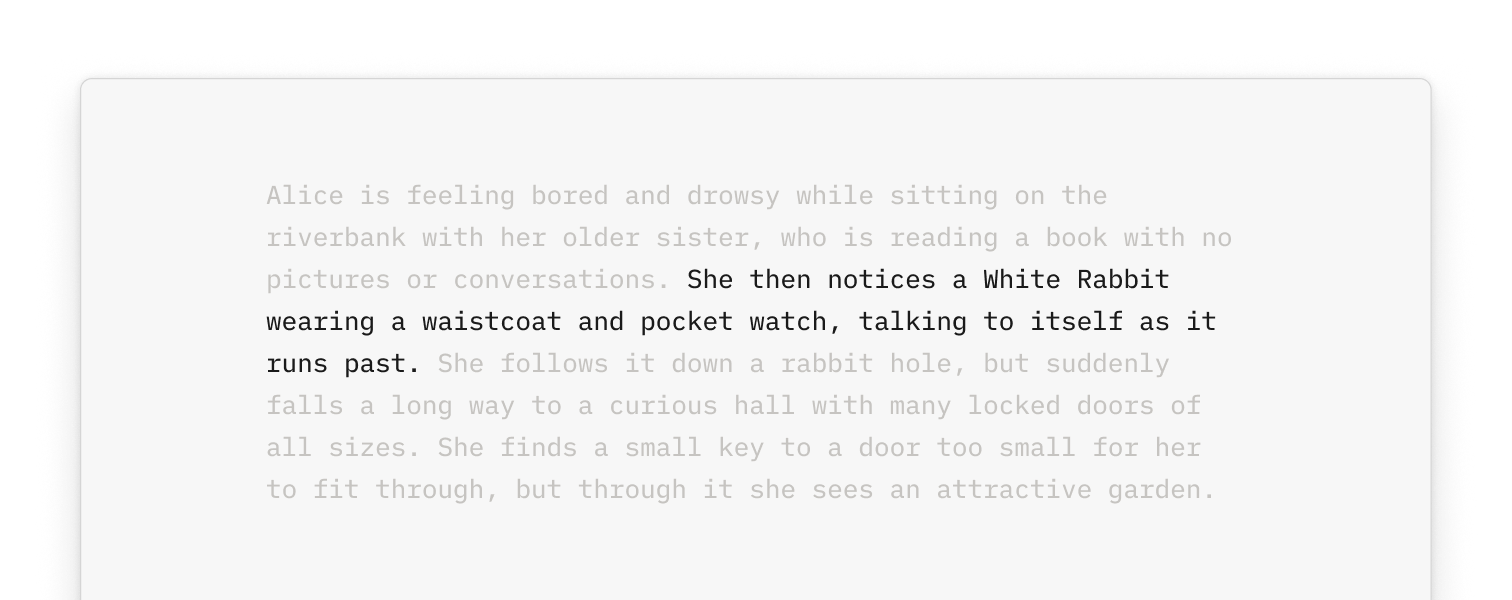
It is available as a free download here.
For the monospace font (which isn’t something that is used an awful lot across my vault) I use Geist mono by Vercel.
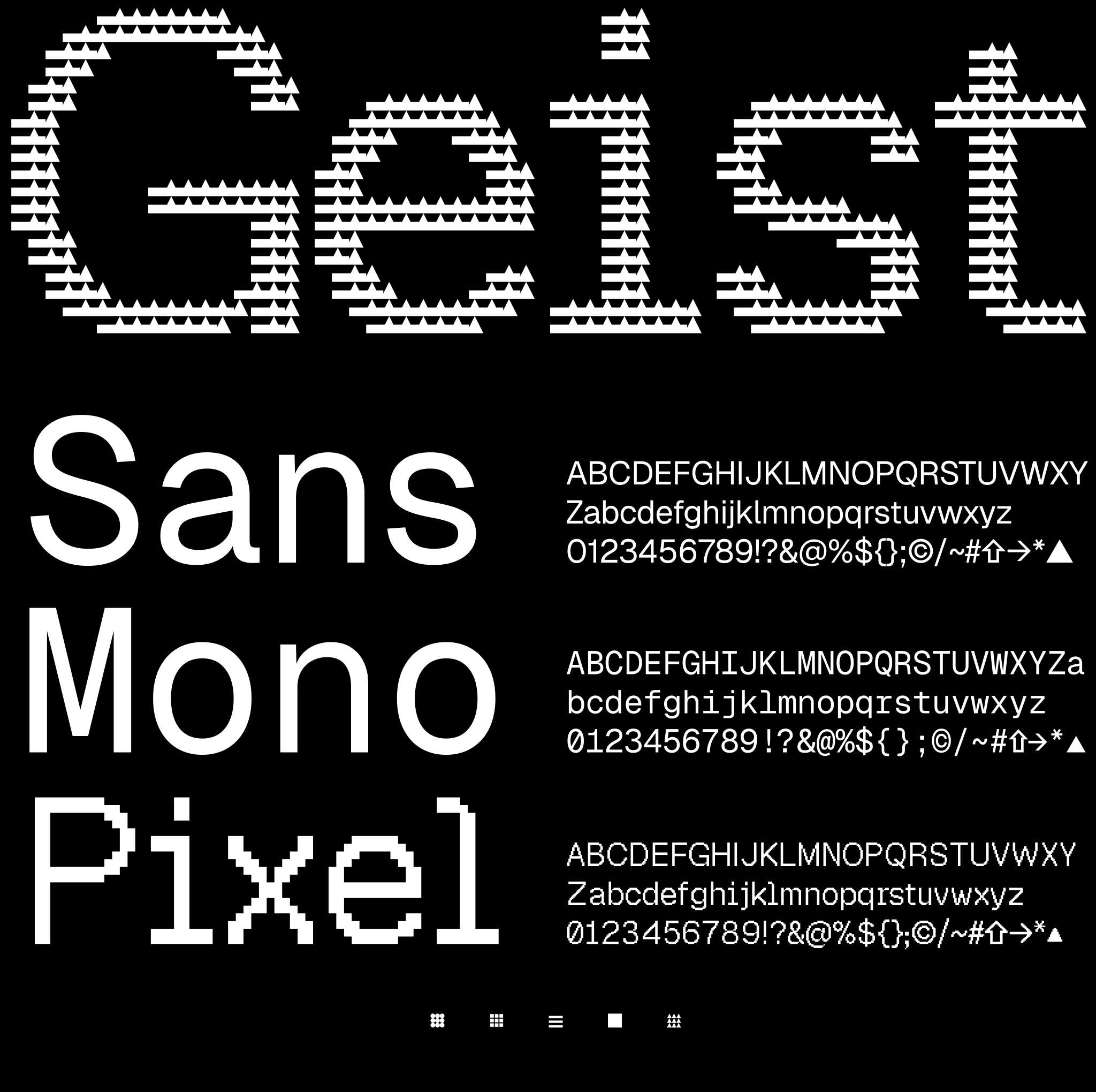
This can be downloaded for free here.
Do check out the pixel variety too! Really nice :)
Plugins
My ethos with plugins has always been to keep it quite simple. Hence I don’t use many plugins.
In all honesty, I found it a bit overwhelming the amount of different things that can be installed, and I was very hesitant to build workflows around plugins that were ultimately created by the community and there was no guarantee that they would be continued to be developed. I wanted to build a note-taking system that would last a long long time, and this was a brittleness I didn’t want to introduce.
I keep my usage to seven plugins, and I have been using these now for years. They are all installable via the community plugins finder, so I won’t include links to them specifically.
Calendar
This works really well with the daily note core plugin - and is something I use pretty heavily. It shows a calendar in the sidebar, and you can easily transverse to a particularly daily note. It also visually shows you the days where you created a daily note with dots.
I use this often when going back to the previous week to look for what I wrote on a specific day.
Hider
Hider lets you hide/change parts of the Obsidian UI, and this is a critical plugin for getting the clean/minimalist aesthetic.
The settings I use are as follows:
Hide tab bar: Off
Hide status bar: On
Hide vault name: On
Hide scroll bars: On
Hide sidebar toggle buttons: Off
Hide tooltips: On
Hide file explorer buttons: On
Hide search suggestions: Off
Hide count of search term matches: Off
Hide instructions: On
Hide properties in reading view: Off
Kanban
I use the kanban plugin specifically to keep on top of writing tasks in my vault. This isn’t one I use extensively, but its definitely a nice quality of life improvement to be able to visualise the state of the different pieces of writing that sit within my vault.
It lives within my “Outputs” folder.
Minimal Theme Settings
Another plugin focused on styling! This handily lets you control some of the different elements of the Minimal theme.
I get asked a lot how you change the look of the navigation in Obsidian, and this is where this is controlled via the “Text labels for primary navigation”.
My settings are as follows:
Colour scheme: Flexoki for light and dark
Background contrast: Default
Text labels for primary navigation: On
Colourful window frame: Off
Colourful active states: Off
Colourful headings: Off
Minimal status bar: On
Trim file names in sidebars: On
Workspace borders: On
Focus mode: Off
Underline internal links: On
Underline external links: On
Maximize media: On
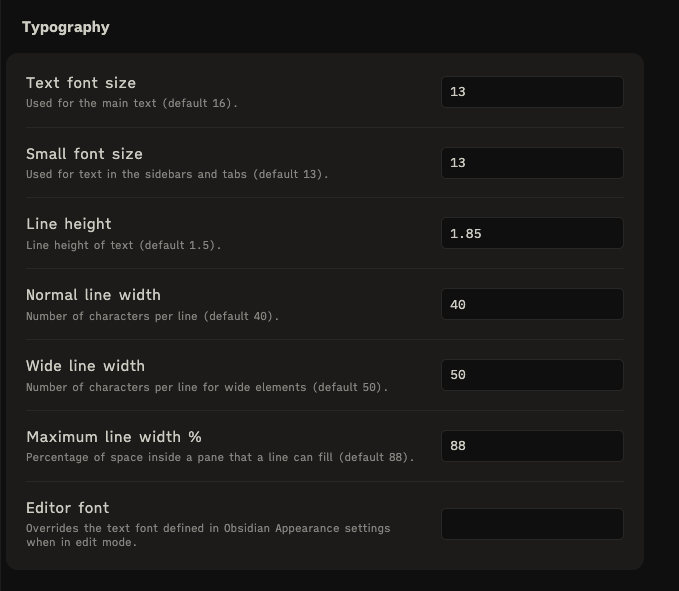
Then for the typography I use the following settings:
Outliner
Coming to Obsidian from Roam Research, I got very used to working with nested bullets. This replicates some of the same behaviour that you found in Roam, and being able to traverse lots of nested bullets.
My writing has moved more away from nested bullets now, so I am not sure whether this is still completely necessary for my vault and the way that I work - however it does no harm so I keep it! :)
Style Settings
There are a tonne of options here to control every aspect of visual settings of you vault. However, most of what I keep here is default. The one thing that it does change however is the styling for my tags.
I use tags a lot, and every note I have in my vault uses tags at the top of the page that will act as metadata. Being able to move away from the standard “pill” shape of the tags and have plain text was important.
The only setting I have changed in this plugin is:
Plain tags: OnTerminal
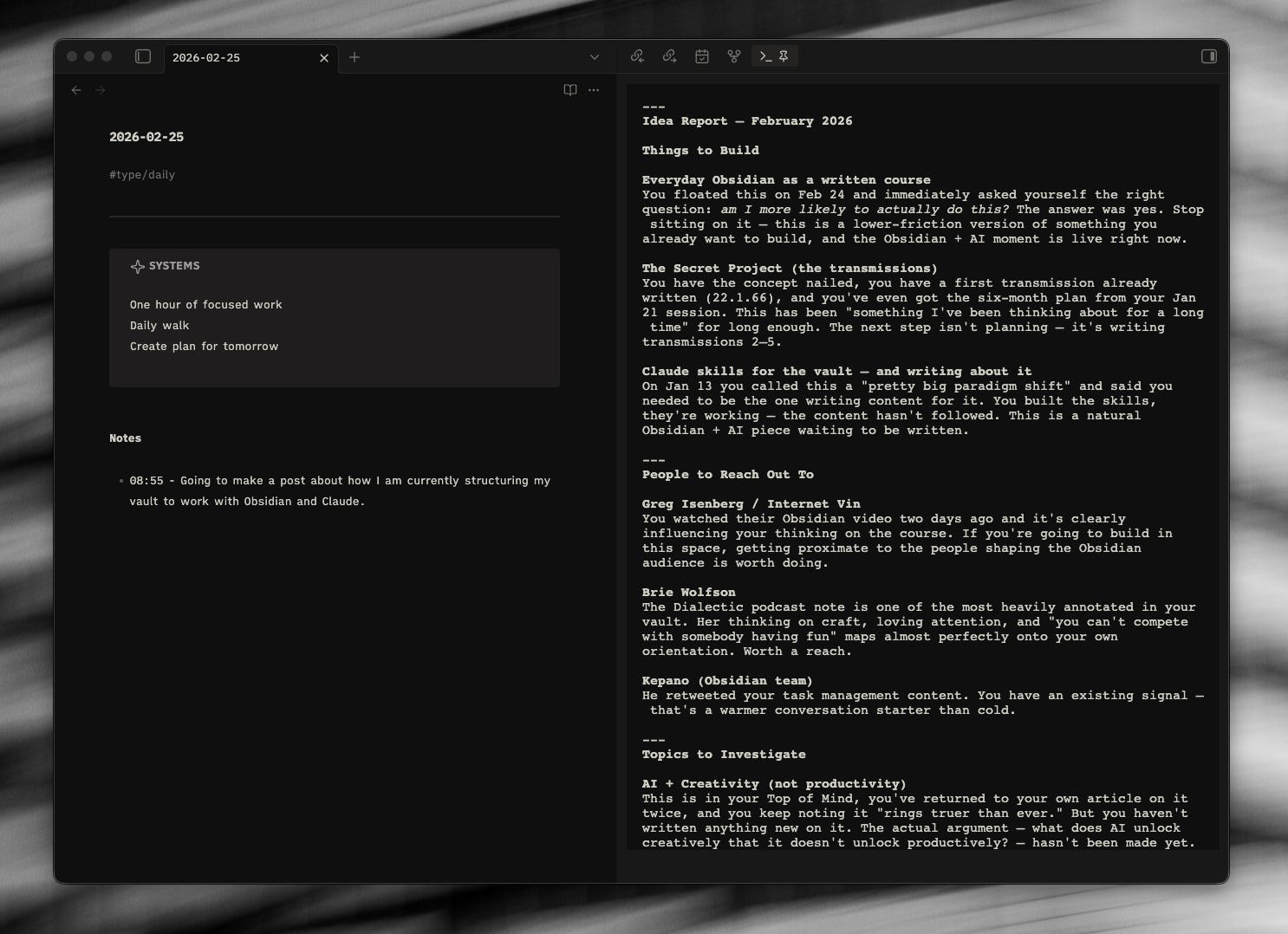
The most recent addition, and I have installed this to use as an integrated terminal when speaking with Claude.
This is still something that I am working out though - I find myself using it sometimes, and other times using my default terminal (Warp) and having both Warp and Obsidian open at the same time. Only time will tell which I prefer I guess!
Custom CSS
I have only written custom CSS for one small aspect of my vault, which is the callouts.
IMO callouts are a pretty underutilised feature in Obsidian generally, in that I rarely see others using them. If you have used Notion, you are likely familiar with the callout box, and that is something I use often there also.
Having a custom colour to match the monochrome nature of my vault was something I wanted to do - and it’s pretty easy in the sense you just create a .css file and then drop it in your ./obsidian/snippets folder. This can then be loaded under the “Appearance” tab in settings.
The CSS for my callout snippet is:
.callout[data-callout=”north-star”] {
--callout-color: 158, 158, 158;
--callout-icon: sparkle;
}
This controls the colour, but it also controls the icon that appears at the top of the callout. I use the callout in my daily note for my daily goals, and have used a star icon.
Conclusion
The flexibility of Obsidian can be overwhelming for folks - and this is one of the biggest sticking points I have found as to why people don’t continue with it. Taking a small amount of time to get your vault feeling as you want it to I think is a worthwhile investment of time.
Of course, its all very tempting to continuously tweak things (been there done that) but I am pleased to say that these configurations have been pretty consistent in my vault for the last four/five years now and my tweaking is kept to a minimal!
If there is any other aspect of my vault that you would like to find out more about, or for me to dive deeper into then please let me know by leaving a comment below or reaching out to me directly.
thank you so much! 🫲
Thanks for sharing, honestly never heard of Obsidian until now. Giving it a try.